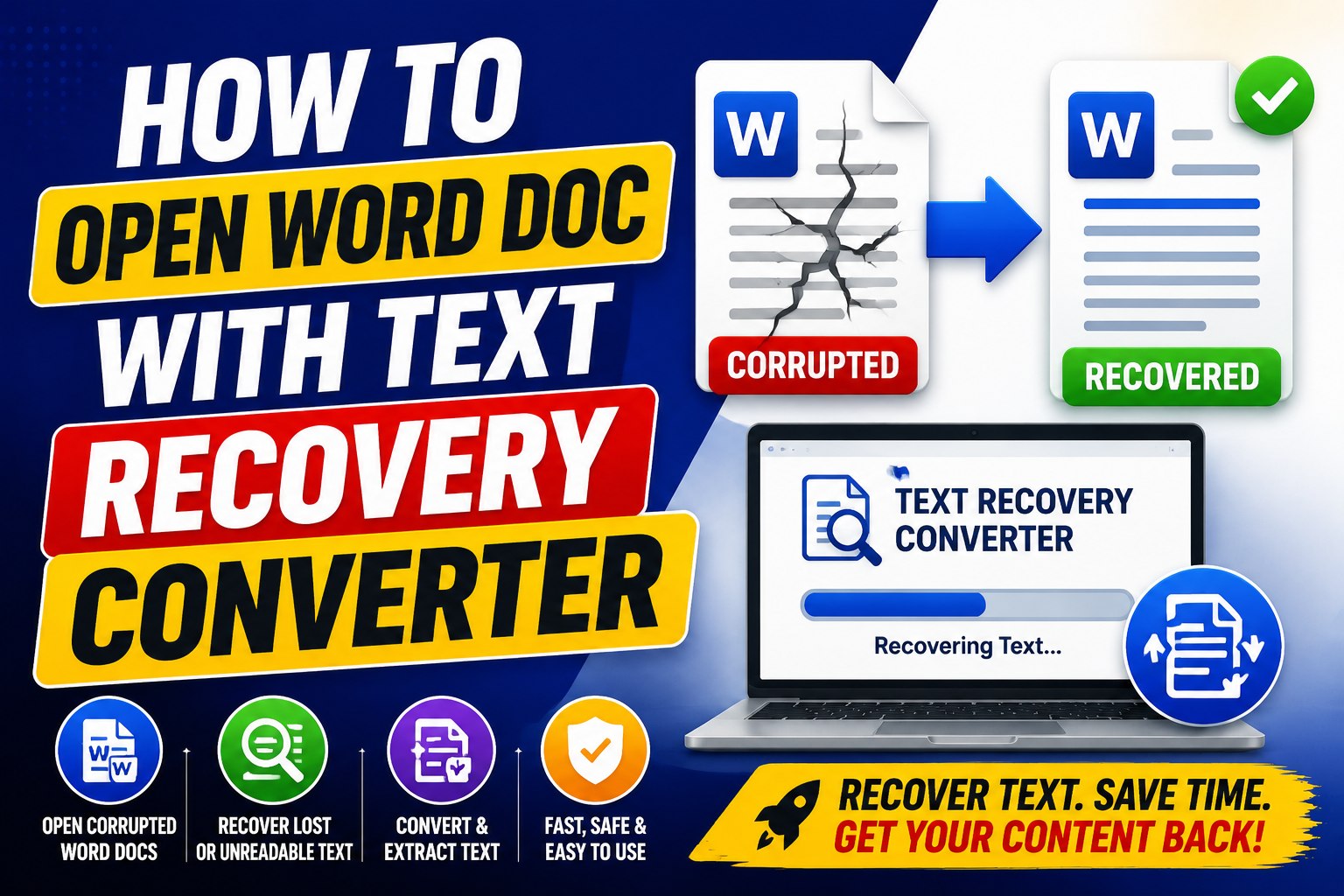
A corrupted Word document can be frustrating, especially when it contains important work like reports, assignments, contracts, or business files. In many cases, Microsoft Word fails to open the file and shows an error message suggesting recovery options. One of the most useful built-in solutions is the Text Recovery Converter.
Understanding how to open a Word doc with a text recovery converter is essential because it allows users to extract readable text from damaged or unreadable Word files. Even when images or tables are broken, the core text in the document can often still be recovered.
Word files can become corrupted for many reasons, including unexpected system shutdowns, virus attacks, storage errors, or incomplete saving processes. Instead of losing everything, Microsoft Word provides recovery tools like Open and Repair and Text Recovery Converter to help retrieve content.
This guide explains step-by-step methods for using the Text Recovery Converter, when to use it, what to expect, and alternatives to try if it does not fully work. By the end, you will clearly understand how to recover text safely and efficiently from damaged Word documents without third-party tools.
Understanding Text Recovery Converter in Microsoft Word
The Text Recovery Converter is a built-in feature in Microsoft Word that extracts readable text from corrupted or damaged files. It does not try to fully repair the document structure. Instead, it focuses on recovering any text still accessible within the file.
When users search for how to open a Word doc with a text recovery converter, they are usually dealing with a file that Word cannot open normally. In such cases, Word suggests using recovery mode to extract content instead of displaying the file in its original format.
This tool works by scanning the file at a low level and ignoring broken elements like formatting structures, embedded objects, or damaged headers. It then extracts readable text and displays it in a new document window.
The Text Recovery Converter is especially useful when files are partially corrupted due to sudden shutdowns, crashes, or transfer errors. However, it is important to understand that it does not guarantee full recovery. You may lose images, tables, styles, and layout formatting.
Still, it is one of the safest and fastest built-in options available in Word, making it the first recovery step for many users.
Step-by-Step Process to Open a Word Doc With Text Recovery Converter
Open Microsoft Word First
Start Word manually instead of opening the file directly. This ensures access to recovery options.
Go to the File Open Menu
Click File → Open → Browse and locate the corrupted Word document.
Select the Recovery Option
In the file type dropdown, choose “Recover Text from Any File.” This is the Text Recovery Converter mode.
Open the File
Select the damaged file and click Open. Word will attempt to extract readable text from the file.
Save Recovered Content
Once the text appears, immediately save it as a new document to prevent further loss.
This is the core method for opening a Word doc with a text recovery converter. It is simple, built into Word, and requires no external tools. However, users should always expect partial formatting loss and be ready to manually rebuild the document afterward.
Proper Use Cases for Text Recovery Converter
The Text Recovery Converter should not be used in every situation. It is specifically designed for corrupted or unreadable Word documents. Knowing when to use it increases your chances of successful recovery.
You should use it when:
- The document refuses to open normally
- Word shows a corruption or unreadable file error
- Open and Repair fails to fix the document
- The file contains important text, but formatting is not critical
- The document opens but shows random characters or broken content
This tool is especially helpful when the goal is to recover written content rather than design or formatting. For example, students trying to recover essays or professionals recovering reports can benefit greatly.
However, if your document contains important formatting elements such as charts, tables, or images, the results may not be entirely satisfactory. That is why it is often recommended as a secondary recovery step after Open and Repair.
Even in difficult cases, learning how to open a Word doc with a text recovery converter gives you a valuable fallback option before moving to advanced recovery software.
Limitations and Common Issues of Text Recovery Converter
Although the Text Recovery Converter is useful, it has clear limitations. Understanding these helps set realistic expectations during recovery.
The biggest limitation is the loss of formatting. Fonts, styles, images, headers, footers, and layout designs are often removed during recovery. The tool focuses only on extracting plain text.
Another issue is incomplete recovery. If the file is heavily damaged, only partial text may be recovered. Some sections may appear scrambled or missing entirely.
The tool also struggles with complex document structures like tables, charts, macros, and embedded objects. These elements are often ignored or converted into unreadable text fragments.
In some cases, the converter may not work at all if the file is too severely corrupted or encrypted. That is why Microsoft also provides alternatives like Open, Repair, and AutoRecover.
Despite these limitations, the tool remains important because it is built directly into Word and can rescue at least part of your document in many situations.
Alternative Methods if Text Recovery Converter Fails
If the Text Recovery Converter does not fully recover your document, there are several alternative methods you can try.
Open and Repair Tool
This is the first alternative. It attempts to fix the file structure while preserving formatting. It is found in File → Open → Browse → Open and Repair.
AutoRecover Feature
Word may store backup versions automatically. Check File → Info → Manage Document to restore previous versions.
OneDrive Version History
If your file is stored in OneDrive or SharePoint, you can easily restore older versions of the document.
Google Docs Upload
Uploading the file to Google Drive sometimes lets it open in Google Docs, which uses a different file-reading system.
Backup or Temporary Files
Check system backup folders or temporary file locations for older copies of your document.
These alternatives work well when the Text Recovery Converter cannot fully recover the file. Combining multiple methods improves the chances of successfully restoring your content.
Summary and Takeaway
Learning how to open a Word doc with a text recovery converter is extremely useful when dealing with corrupted Word files. It provides a simple, built-in way to extract readable text even when a document cannot be opened normally.
While it does not preserve formatting or images, it helps recover the most important part—the written content. For many users, this is enough to rebuild the document and continue work without starting from zero.
When combined with tools like Open and Repair, AutoRecover, and cloud version history, the Text Recovery Converter becomes part of a powerful recovery system that can save important files in critical situations.
FAQ’s
What is the Text Recovery Converter in Microsoft Word?
The Text Recovery Converter is a built-in Microsoft Word feature that helps extract readable text from corrupted or damaged Word documents when normal opening methods fail.
How do I use Text Recovery Converter to open a Word document?
Go to File → Open → Browse → select your file → choose “Recover Text from Any File” from the file type menu → click Open.
Does Text Recovery Converter recover images and formatting?
No, it mainly recovers plain text. Most formatting, images, tables, and design elements are usually removed during recovery.
When should I use Text Recovery Converter?
Use it when your Word document is corrupted, shows an error message, or fails to open using normal methods or Open and Repair.
What should I do if Text Recovery Converter does not work?
Try alternatives like Open and Repair, AutoRecover files, OneDrive version history, or Google Docs to open the document.
Is Text Recovery Converter safe to use?
Yes, it is completely safe because it is an officially built-in feature in Microsoft Word and does not require any external software.